
The Minarium Creator Hub is live! Built based on invaluable feedback from our seller community, the upgraded creator page has been redesigned to help buyers (1) find your best work faster (2) stay engaged between releases and (3) reach you directly when they need support.
Your page already reflects the new look automatically. Spend 10 minutes on these four steps to get the most out of it:
- Refresh your banner, avatar, and bio
- Pin 3 Featured Models (best seller + newest release + one signature pick)
- Post one Creator Update to welcome new visitors
- Check your Support Inbox so you’re ready when messages arrive
For a closer look at this creator-first approach, as well as each feature, read on…
What is the Minarium Creator Hub (and Why It Matters for 3D Print Sellers)
The Creator Hub is your public-facing seller page on Minarium; it’s the first thing buyers see when they discover your work. The previous layout treated every model equally, making it harder for new visitors to know where to start or find your best work quickly.
The new Creator Hub is structured around what buyers actually do when they land on a creator’s page: scan for standout models, check what’s new, browse the catalog, and occasionally reach out with a question. All four of those behaviors now have a dedicated feature to support them.
Featured Models: Put Your Best 3D Print Designs Front and Center
You can now pin up to 3 models at the very top of your Creator Hub — giving first-time visitors an immediate “start here” experience instead of dropping them into a full catalog scroll.
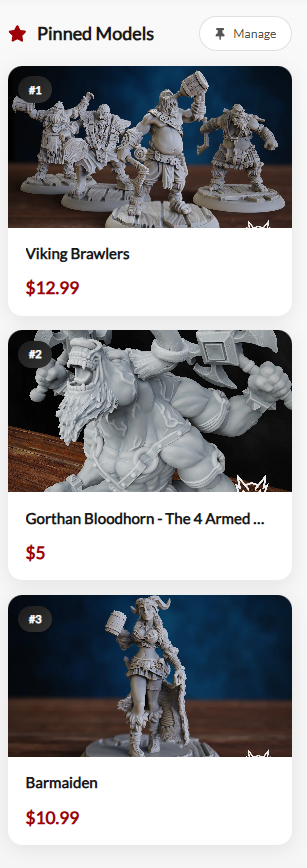
How to choose your Featured Models:
- Your best-selling 3D print model
- Your most recent release
- A model that best represents your style or niche (even a free one)
Not sure what to pin? Here are a few strategies that work well for mini sellers specifically:
- A beginner-friendly model if your audience includes new hobbyists
- A seasonal or themed set if you run limited drops
- A flagship bundle if you want to lead with value
You can reorder your pinned models at any time from your creator admin area. If you don’t select anything, the Featured Models section simply won’t appear on your page.
Creator Updates: Keep Fans Engaged Between Releases
Creator Updates adds a post feed to your Creator Hub where you can share work-in-progress shots, new release announcements, sneak peeks, and quick notes. No separate social media platform needed to keep your audience in the loop.
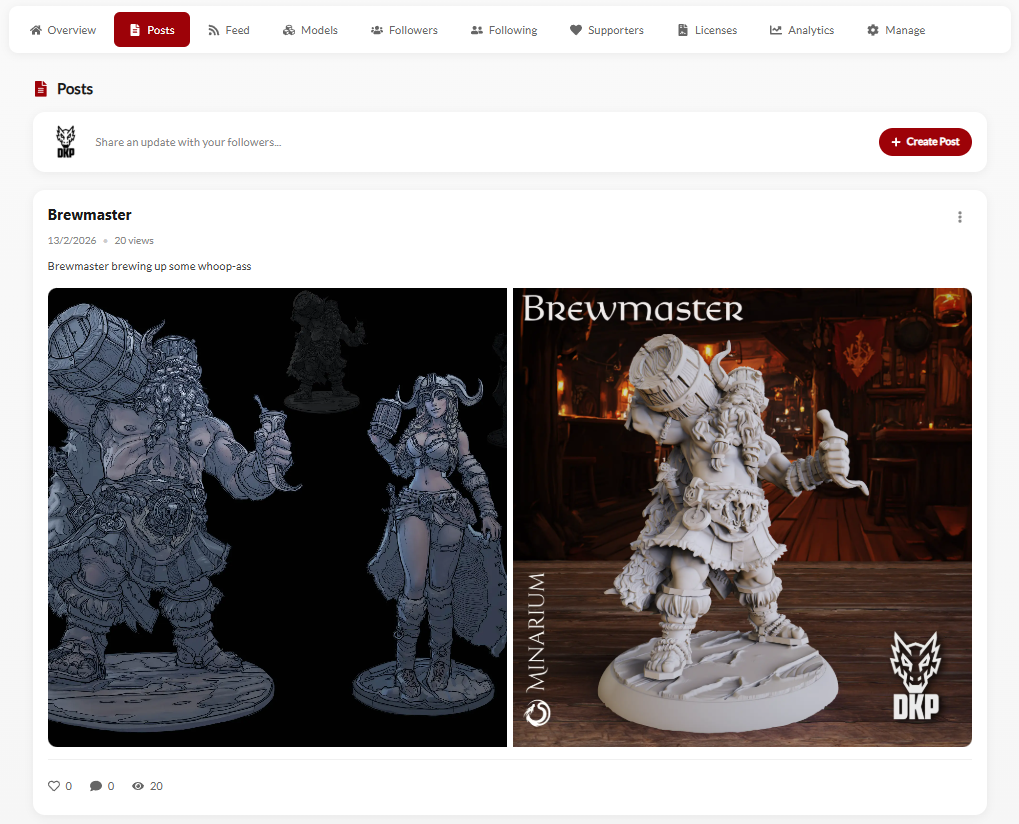
Posts appear in reverse chronological order (newest first), keeping your page feeling active even during slower production periods. Logged-in users can like and comment on your posts.
A simple posting rhythm that works: one to two short posts per week is enough to maintain visibility and signal to buyers that you’re an active creator.
Model Showcase: A Cleaner Catalog for Better 3D Model Discovery
Your full catalog now lives in a dedicated Model Showcase section with a cleaner grid layout, filters, and sorting options that give buyers the tools to find exactly what they’re looking for in your lineup.
Buyers can filter by:
- Price (Free vs. Paid)
- Category (terrain, vehicles, sci-fi, fantasy, etc.)
- System/scale (where available)
Buyers can sort by:
- Newest
- Most popular
- Best selling
When buyers can narrow down your catalog quickly, they browse longer. More browsing means more conversions, and that matters for 3D print sellers on any marketplace.
Support Messaging; One Inbox for All Buyer Questions
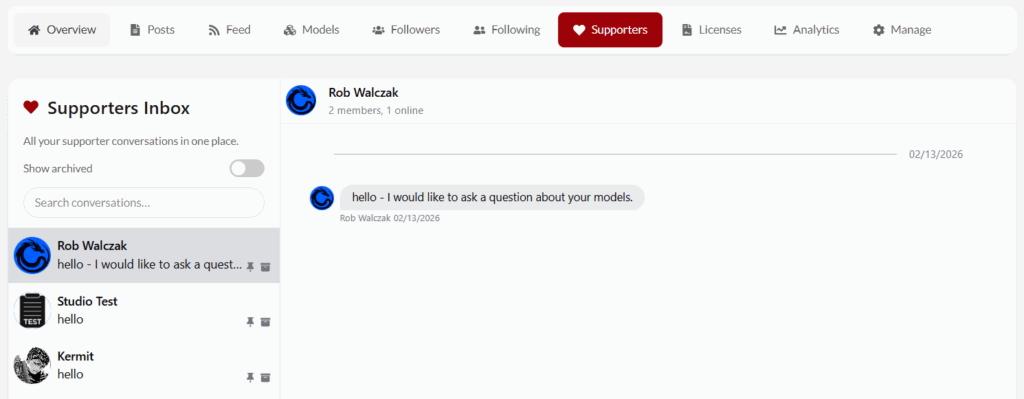
A “Message Creator” button now lives on your Creator Hub. Logged-in buyers can open a support thread directly with you; visitors without an account will be prompted to log in or sign up first.
All messages are managed through a Support Inbox in your creator admin area, keeping buyer questions in one organized place rather than scattered across email or social DMs. This is especially useful for common mini seller questions like:
- “Which files are included?”
- “Will this work at 28mm or 32mm scale?”
- “I’m missing a download” or “My download failed”
- Print settings, file formats, and licensing questions
How Your Upgraded Creator Hub Is Organized
Here’s the full layout a buyer sees when they visit your Minarium creator page:
- Header — avatar, banner, creator name, short bio, and social links
- Featured Models — up to 3 pinned models (if configured)
- Creator Updates — your latest posts and announcements
- Model Showcase — your full catalog with filters and sorting
- Support Messaging — a direct line for buyer questions
Every section is designed to answer the questions new visitors ask within the first few seconds: Who is this creator? What’s their best work? What’s new? Can I find what I want? How do I get help?
10-Minute Setup Checklist for 3D Printable Miniature Sellers
Your Creator Hub already reflects the new theme automatically. To get the most out of every feature:
- Update your profile — refresh your banner image, avatar, and bio
- Pin 3 Featured Models — best seller + newest release + one signature pick
- Post your first Creator Update — even a short “here’s what I make” post works well
- Check your Support Inbox — get familiar with it before buyer messages start coming in
Make Your Minarium Creator Hub Work for You
The Creator Hub upgrade is about doing more with the audience you already have: a cleaner page, a smarter catalog, a lightweight way to stay visible between releases, and a simple path for buyers to reach you.
Log into your creator admin area and spend 10 minutes setting up your Featured Models, your first post, and a quick profile refresh. That’s all it takes to get ahead of sellers who haven’t configured their hub yet.
Frequently Asked Questions
Do I need to do anything for the upgrade to take effect? Your hub updates to the new theme automatically. The Featured Models, Creator Updates, and Support Messaging features only appear once you configure them in your creator admin area.
What should I pin if I’m a newer seller without a clear best seller yet? Pin your most polished model, your newest release, and one that best represents your creative style. Think “best first impression” rather than best-performing.
Where do I manage buyer messages? Use the Support Inbox in your creator admin area to view and respond to all customer conversations.
How often should I post Creator Updates? Consistency matters more than volume. One to two posts per week, even short ones, is enough to keep your page active and your audience engaged.
Leave a Reply